
Connecting a PS4 controller to a PS4 may sound simple, but in practice, many users face issues, especially when setting up a new console, replacing a controller, or reconnecting after using the controller on a PC, phone, or another PlayStation system. If your DualShock 4 isn’t pairing properly, doesn’t respond, or refuses to connect wirelessly, you’re not alone.
This in-depth guide explains how do you connect a PS4 controller to a PS4 using all available methods, including USB and Bluetooth, and provides troubleshooting steps for common problems. Whether you’re a first-time PlayStation user or an experienced gamer dealing with an unresponsive controller, this article will walk you through every scenario clearly and confidently.
Understanding the PS4 Controller (DualShock 4)
Before diving into the connection steps, it’s helpful to understand how the PS4 controller works and why connection issues sometimes occur. The DualShock 4 controller connects to the PS4 in two ways:
Wired Connection Using a USB Cable
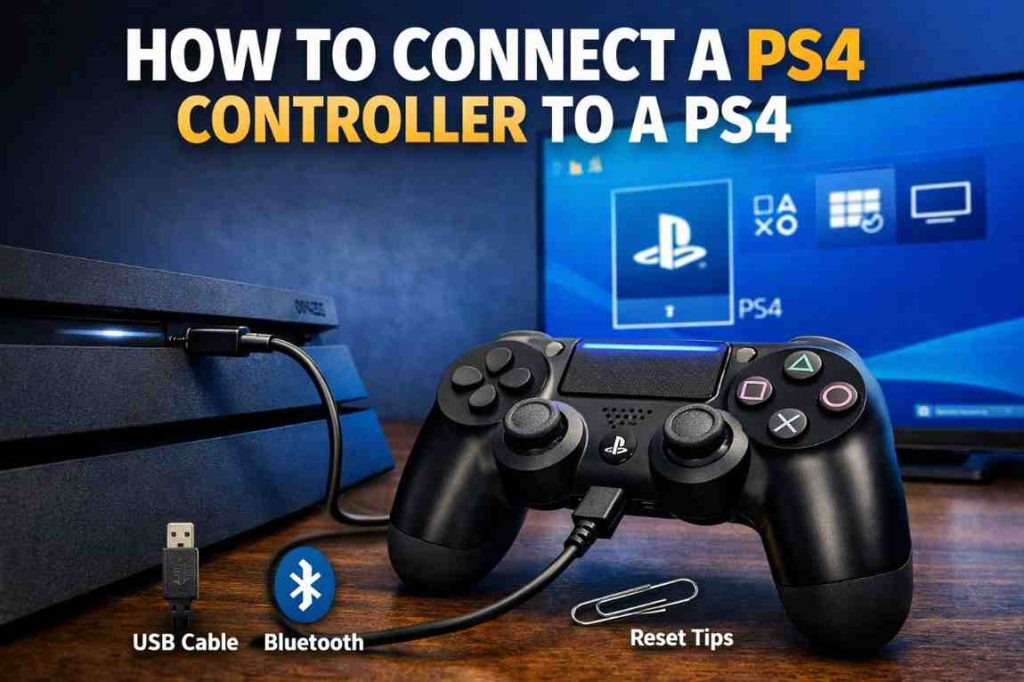
The DualShock 4 controller connects to the PS4 via a wired method by plugging a micro-USB cable into the controller’s USB port and one of the PS4’s front USB ports. This connection allows immediate use for gameplay without pairing, while also charging the controller’s battery simultaneously. The light bar on the controller lights up solid (often blue for player one) upon recognition, enabling reliable input even if Bluetooth is unavailable.
Wireless Connection via Bluetooth
For wireless use, first connect the controller wired to pair it initially, then unplug the cable once the PS button is pressed and the light bar glows steadily. Subsequent connections occur automatically via Bluetooth when the PS button is pressed within range (about 8 meters), or manually by holding the PS and Share buttons until the light bar flashes rapidly for re-pairing through PS4 Settings > Devices > Bluetooth Devices.
Problems Usually Arise
When first setting up a PS4 or using a new DualShock 4 controller, the console requires an initial wired pairing via USB cable. After this, the controller connects wirelessly via Bluetooth as long as it remains paired to the console. Common problems occur when the controller was previously paired with another device, its battery is drained, the USB cable used doesn’t support data transfer, or the controller’s Bluetooth memory needs resetting.
What You Need Before Connecting a PS4 Controller
Using the correct USB cable is critical. Many third-party cables only provide power and cannot transfer data, which prevents the controller from pairing. To avoid unnecessary frustration, make sure you have the following ready before starting:
- A PS4 console
- A DualShock 4 controller
- A USB cable that supports data transfer
- A powered-on TV or monitor
- A charged controller
How to Connect a PS4 Controller to a PS4 Using a USB Cable
This is the most reliable and recommended method, especially for first-time setup or reconnecting a controller.
Step-by-Step Instructions
Here is the step-by-step guide on how do you connect a PS4 controller to a PS4.
Turn Off PS4
Power down the console fully using the power button until it beeps twice and the light turns off red, ensuring it’s not in Rest Mode (orange light) to avoid connection conflicts during pairing.
Connect the USB Cable
Use a micro-USB cable that supports data transfer (not just charging); insert one end firmly into a front USB port on the PS4 and the other into the controller’s rear micro-USB port for a stable wired link.
Power On PS4
Press the console’s main power button once to boot it up normally (you’ll hear one beep and see a white light), allowing the system to detect the connected controller automatically.
Press the PS Button
Hold or tap the large central PS button on the controller; the light bar will flash briefly, then stay solid (typically blue for player 1), signalling successful recognition and readiness for use or wireless pairing initiation.
Why This Method Works Best
Using the USB cable method forces the PS4 to recognize the controller immediately, establishes the initial Bluetooth pairing for future wireless use, bypasses any wireless interference issues, and solves most connection problems instantly.
How to Connect a PS4 Controller Wirelessly (Bluetooth)
After the initial wired setup, the PS4 controller automatically connects wirelessly when you turn on the console.
Initial Setup
For wireless connection of a DualShock 4 controller to a PS4, start with a wired USB connection if it’s a new controller or first-time pairing. Plug the micro-USB cable into the PS4’s front USB port and the controller, then press the PS button to power on the console and controller. This establishes the initial Bluetooth pairing, allowing the controller to remember the console for future wireless use.
Automatic Wireless Connection
Once paired, the controller connects wirelessly automatically when within range (about 8 meters) by simply pressing the PS button; the light bar glows solid, confirming the link without further steps. No cables are needed afterwards unless the battery drains or interference occurs. This method supports up to four controllers simultaneously.
Manual Re-Pairing
If the controller fails to connect (e.g., paired to another device), put it into pairing mode by holding the PS button and Share button together for 3-5 seconds until the light bar flashes rapidly white. On the PS4, navigate to Settings > Devices > Bluetooth Devices, select Wireless Controller, and confirm pairing. The light bar turns solid upon success, restoring wireless functionality.
How to Reset a PS4 Controller and Reconnect It
Resetting the controller is often necessary if it was previously connected to another device like a PC, phone, or PS5.
When You Should Reset the Controller
You should reset the controller when it won’t connect wirelessly to the console or when the light bar keeps flashing white or does not turn on at all. A reset is also recommended if the controller was previously used on another console or device, as connection conflicts can occur. Additionally, if the buttons start lagging or stop responding properly, resetting the controller can help restore normal functionality.
How to Reset a DualShock 4 Controller
To reset a DualShock 4 controller, start by turning off the PS4 completely and disconnecting the controller. Next, locate the small reset hole near the L2 button on the back of the controller and use a paper clip to press and hold the reset button for about 5 to 10 seconds. After releasing it, reconnect the controller to the PS4 using a USB cable, turn the console back on, and press the PS button to re-pair the controller and restore the connection.
Connecting a PS4 Controller When You Don’t Have a Working Controller
Sometimes, your only controller won’t connect at all. This can make navigating the PS4 menu difficult.
Alternative Solutions
- Use a different DualShock 4 controller temporarily.
- Borrow a controller to access settings.
- Use a USB keyboard to navigate the PS4 menu.
- Use the PlayStation Remote Play app to control the console.
Common PS4 Controller Connection Problems and Fixes
Even after following the steps, some users still experience issues. Below are the most common problems and their solutions.
Controller Light Blinking White
This usually means the controller is searching for a device.
Fix It
To fix the issue, start by resetting the controller and then reconnecting it to the PS4 using a proper USB data cable. Make sure the PS4 is fully powered on during this process so the controller can successfully pair with the console.
Controller Light Turns Orange
An orange light usually indicates charging or Rest Mode.
Fix It
To fix this issue, first wait until the controller has finished charging properly. Next, wake the PS4 from Rest Mode, and then press the PS button again to reconnect the controller and resume normal use.
Controller Not Responding at All
This could be due to a drained battery or a faulty cable.
Fix It
To resolve this problem, charge the controller for at least 30 minutes to ensure it has enough power. If the issue continues, try using a different USB cable and test another USB port on the PS4 to rule out cable or port-related problems.
How to Connect Multiple PS4 Controllers to One PS4
You can connect up to four controllers to a single PS4 console.
Steps to Add Another Controller
To add another controller, first turn on the PS4 and connect the second controller to the console using a USB cable. Once connected, press the PS button on the controller and follow the on-screen prompt to assign a user profile. Each controller will then be linked to a separate user account, allowing multiple players to use the PS4 simultaneously.
Using a PS4 Controller on Another Device and Reconnecting It
If you have previously connected your PS4 controller to a PC, smartphone, or tablet, the controller may remain paired with that device and fail to reconnect to the PS4 on its own. This happens because the controller can only actively pair with one device at a time over Bluetooth. To fix this and enjoy your gaming period, you should connect the controller back to the PS4 using a USB cable and then turn on the console. Doing so forces the controller to re-sync and re-establish its Bluetooth pairing with the PS4, ensuring a stable and reliable connection for normal gameplay.
Wired vs Wireless Connection: Which Is Better?
When connecting a PS4 controller, users often have the choice between a wired or wireless connection, and each option comes with its own advantages. Understanding the differences between wired and wireless connections can help you decide which method works best for your gaming style and setup, as both offer unique benefits depending on performance, convenience, and reliability.
Wired Connection Advantages
Zero input lag.
No battery drain.
More stable during competitive gaming.
Wireless Connection Advantages
Freedom of movement.
Cleaner setup.
Ideal for couch gaming.
Most users prefer wireless, but wired is excellent for troubleshooting and competitive play.
Tips to Maintain a Stable PS4 Controller Connection
To maintain a stable PS4 controller connection, make sure to charge your controller regularly so it always has sufficient power. Try to avoid Bluetooth interference by keeping other wireless devices at a distance, and avoid pairing the controller with too many devices at the same time, as this can cause connection conflicts. Using official or high-quality USB cables also helps ensure reliable charging and data transfer. When the controller is not in use, store it properly to prevent damage and preserve its overall performance.
Conclusion
Connecting a PS4 controller to a PS4 is usually quick and straightforward, but issues can arise due to Bluetooth conflicts, low battery, or incorrect cables. The safest and most reliable method is always starting with a wired USB connection, which allows the console to recognize and pair the controller properly.
By following the steps in this guide, whether you’re setting up a new PS4, reconnecting a controller, or fixing pairing problems, you can restore full functionality without stress. Understanding how the DualShock 4 works and knowing when to reset or re-pair it ensures a smooth gaming experience every time.
Frequently Asked Questions (FAQs)
How do I connect a PS4 controller to a PS4 for the first time?
Use a USB data cable to connect the controller to the PS4, turn on the console, and press the PS button. This completes the initial pairing.
Why won’t my PS4 controller connect wirelessly?
The controller may be paired to another device, have a low battery, or need resetting. Try resetting it and reconnecting with a USB cable.
Can I connect a PS4 controller without a USB cable?
The first time you connect a PS4 controller to the console, you must use a USB cable to complete the initial pairing. Once this pairing is done, the controller can connect to the PS4 wirelessly without needing the cable.
How many controllers can connect to one PS4?
A single PS4 console can support connecting up to four DualShock 4 controllers simultaneously. This allows multiple players to play together on the same console without any issues.
Does any USB cable work for connecting a PS4 controller?
The USB cable used to connect the PS4 controller must support data transfer, not just charging. Many cables designed only for charging cannot establish the connection needed for pairing with the console.




)
&description=&image=https://techwelo.com/wp-content/uploads/2024/10/How-Do-You-Connect-a-PS4-Controller-to-a-PS4-1024x682.jpg)