
Working remotely has redefined what it means to go to the office. But while your commute got shorter, your exposure to cyber threats got longer. The moment your laptop left the corporate network and connected to a home Wi-Fi network, you became a softer target, and cybercriminals know it.
According to cybersecurity researchers, remote workers are three times as likely to be targeted by phishing attacks as in-office employees. The reasons are straightforward: weaker network controls, the mixing of personal devices with work tasks, and reduced visibility from IT security teams.
This cybersecurity checklist isn’t a generic list of tips. It’s a practical, step-by-step guide built for real remote workers, whether you’re a solo freelancer, a hybrid employee, or a manager of a distributed team. Follow these 12 steps, and you’ll have a genuinely hardened remote workspace.
Why Remote Workers Are High-Value Targets for Cybercriminals
Before diving into the checklist, it’s worth understanding the unique security risks of remote work.
When you work from a corporate office, you’re protected by layers of enterprise security: firewalls, intrusion detection systems, network segmentation, and dedicated IT staff monitoring threats in real time. At home, most of that disappears. You’re relying on a consumer-grade router, a personal or semi-managed device, and your own judgment.
Attackers exploit this gap aggressively. In 2024 and into 2025, AI-generated phishing emails have become nearly indistinguishable from legitimate business correspondence. Ransomware gangs specifically target home networks as entry points into corporate systems. And shadow IT employees using unauthorized apps to get work done faster create invisible backdoors that even the best security teams struggle to detect.
The good news? A well-followed cybersecurity checklist closes most of these gaps without requiring enterprise-level tools or a technical background.
Read more: Choosing the Right Cybersecurity Framework
The Complete Cybersecurity Checklist for Remote Workers
Step 1: Lock Down Your Home Wi-Fi Network
Your home router is the front door to your entire digital workspace. Most people set it up once and never think about it again, which is exactly the problem.
Start by changing your router’s default admin username and password immediately, since default credentials are publicly listed and exploited constantly. Set your Wi-Fi encryption to WPA3 if your router supports it, or at a minimum to WPA2; never use WEP, as it is cryptographically broken and offers no real protection. You should also create a separate guest network exclusively for smart home devices, visitors, and non-work gadgets.
This network segmentation ensures that a compromised IoT device cannot pivot to your work laptop. Additionally, disable WPS (Wi-Fi Protected Setup), which carries known vulnerabilities that allow brute-force attacks even against strong passwords. Finally, make a habit of updating your router’s firmware regularly, since manufacturers release security patches that the vast majority of users never apply.
Pro Tip: Log into your router’s admin panel, usually accessible at 192.168.1.1 or 192.168.0.1, and disable remote management. There is almost no reason to manage your router from outside your home network.
Step 2: Use a VPN — But Choose It Wisely
A Virtual Private Network (VPN) encrypts your internet traffic between your device and its destination, making it significantly harder for attackers or even your ISP to intercept sensitive data.
If your employer provides a corporate VPN, use it every time you access company systems. If you work independently, choose a reputable consumer VPN with a verified no-logs policy, strong AES-256 encryption, and a kill switch that disconnects you if the VPN drops. You should always connect through a VPN when using public Wi-Fi, since coffee shops, airports, hotels, and co-working spaces are active hunting grounds for attackers running man-in-the-middle attacks.
It is equally important to avoid free VPNs entirely, as many of them monetize their service by logging and selling your browsing data, the precise opposite of what you need from a privacy tool. It is worth noting that a VPN is not a complete security solution. It encrypts your traffic but does nothing to protect against phishing, malware, or compromised credentials. Think of it as one critical layer in a multi-layered defense strategy.
Step 3: Enable Multi-Factor Authentication (MFA) on Everything
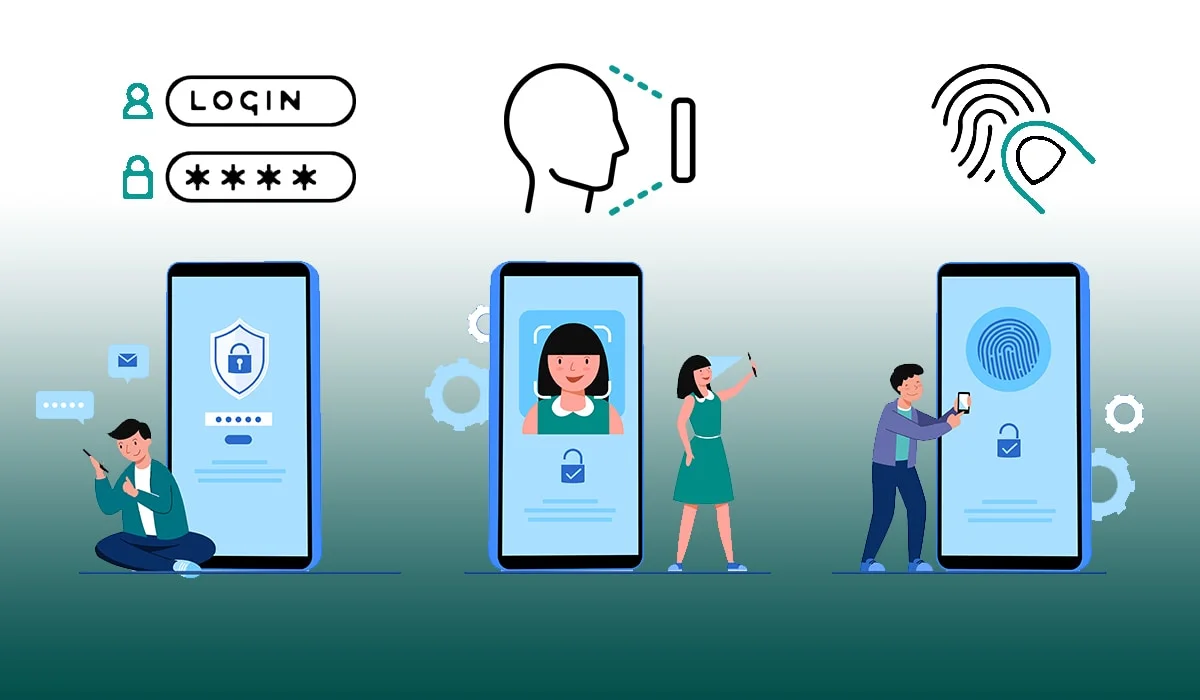
Passwords get stolen. They are leaked in data breaches, guessed through brute-force attacks, and harvested through phishing. Multi-factor authentication (MFA) ensures that a stolen password alone is not enough to break into your accounts.
Enable MFA on every work-related account you use, including email, cloud storage, project management tools, CRM platforms, and financial accounts. Where possible, prefer authenticator app-based MFA, such as Google Authenticator, Authy, or Microsoft Authenticator, over SMS-based codes, since text message codes can be intercepted via SIM-swapping attacks.
For your most sensitive accounts, consider taking it a step further with a hardware security key, such as a YubiKey, which provides the strongest available form of authentication. If your organization operates under a Zero Trust Access architecture, ensure MFA is enforced at the identity provider level rather than relying on individual applications to handle it.
Pro Tip: Prioritize enabling MFA on your email account above all else. Most password reset flows are routed via email, meaning that if an attacker gains access to your inbox, every account linked to that address becomes vulnerable.
Step 4: Practice Strong Password Hygiene With a Password Manager
Most people reuse passwords across accounts. When one account is breached, and breaches happen constantly, every other account sharing that same password falls like dominoes.
The solution is to use a dedicated password manager, such as Bitwarden, 1Password, Dashlane, or Keeper, to generate and securely store a unique, complex password for each of your accounts. Every password should be at least 16 characters long, mixing uppercase letters, lowercase letters, numbers, and symbols, or you can use long passphrases made up of four or more random words strung together.
Avoid storing passwords in your browser’s built-in save feature when using a personal or shared device for work, as browser-stored credentials are relatively easy for anyone with physical or remote access to your machine to extract. Finally, check your email address against known breach databases using Have I Been Pwned (haveibeenpwned.com) and change any passwords associated with compromised accounts immediately.
Step 5: Keep Every Device and Application Updated
Cybercriminals actively scan for unpatched systems. The notorious WannaCry ransomware attack in 2017 exploited a Windows vulnerability that Microsoft had already patched. Millions of systems were compromised simply because users had not applied the available update.
Enable automatic updates for your operating system and all installed applications so patches are applied as soon as they are released. Never ignore update prompts or defer them indefinitely, since remind me later is effectively a standing invitation to attackers. Keep your browser and all browser extensions updated as well, because outdated extensions are a well-documented vector for malware injection into otherwise secure systems. If you use company-managed devices, do not block or delay update pushes from your IT team, as those patches frequently address vulnerabilities that are already being actively exploited in the wild.
It is worth extending this habit beyond your primary devices. Firmware updates for your router, smart technology home devices, webcam, and even wireless keyboard and mouse dongles matter just as much, since every connected device runs software and software has vulnerabilities.
Step 6: Install Reputable Endpoint Security Software
Antivirus alone is not enough in the modern threat landscape. Today’s attacks increasingly use fileless malware, living-off-the-land techniques, and memory-based exploits that traditional signature-based antivirus software is designed to miss entirely.
Rather than relying on legacy antivirus, install a modern Endpoint Detection and Response (EDR) solution. Platforms like Microsoft Defender for Endpoint, CrowdStrike Falcon Go, or Malwarebytes Premium offer behavioral detection that identifies threats based on what a process is doing rather than matching it against a known signature database.
Ensure real-time protection is always active, and schedule a full system scan at least once per week. If your company issues managed devices, make sure they are enrolled in your organization’s endpoint management platform, whether that is Microsoft Intune, Jamf, or another MDM solution, so the IT team retains the ability to push security policies and remotely wipe the device if it is ever lost or stolen.
Step 7: Recognize and Resist Phishing Attacks
Phishing remains the single most common entry point for cyberattacks. In 2025, AI-powered phishing tools can clone your CEO’s writing style, replicate legitimate invoices with convincing precision, and craft perfectly personalized lure emails using data scraped directly from your LinkedIn profile.
Defending against phishing starts with always verifying the sender’s full email address rather than trusting the display name alone, since “Microsoft Support” in the name field means nothing if the actual sending domain is unfamiliar. Before clicking any link in an email, hover over it to preview the destination URL. A link that visually reads as “paypal.com” might actually route to “paypa1.com” or another lookalike domain designed to steal your credentials.
Be especially suspicious of any message engineered to create urgency, such as warnings that your account will be locked within 24 hours or demands for immediate action, as these are textbook pressure tactics used to override your better judgment. Never download attachments from unexpected emails, even if the sender appears familiar, since email spoofing allows attackers to convincingly fake sender addresses. When you have any doubt about a message’s legitimacy, verify it through a completely separate channel by calling the person using a phone number you already know.
Pro Tip: Your organization should run regular simulated phishing exercises. If yours does not, raise it with your manager or IT team. Simulated phishing campaigns are among the most cost-effective security awareness tools available.
Read more: GRC Cybersecurity
Step 8: Encrypt and Securely Back Up Your Data
A ransomware attack encrypts your files and holds them hostage until you pay a ransom. A stolen laptop exposes confidential client data to whoever finds it. Both scenarios are devastating and largely preventable through proper encryption and disciplined backup practices.
Start by enabling full-disk encryption on your primary work device: BitLocker on Windows and FileVault on macOS are built-in, free, and highly effective at making data on a stolen device completely unreadable without your login credentials. For your backup strategy, follow the 3-2-1 rule: maintain three copies of your data, stored across two different types of storage media, with one copy held offsite; cloud-based backups count toward that offsite requirement.
Use encrypted cloud storage for your work files, with platforms like Google Drive, Microsoft OneDrive, or Dropbox Business all offering encryption both in transit and at rest. Critically, test your backups regularly. An untested backup is nothing more than an assumed backup; restore a handful of files each quarter to confirm the recovery process actually works when you need it.
Step 9: Secure Your Physical Workspace
Digital threats attract most of the attention, but physical security is equally important for remote workers. A shoulder-surfing stranger at a coffee shop or an unlocked laptop left unattended during a lunch break can expose sensitive data just as effectively as a sophisticated cyberattack.
Get into the habit of locking your screen every time you step away from your device on Windows, use Win + L, on Mac, use Cmd + Ctrl + Q and configure your device to auto-lock after one to two minutes of inactivity. When working in public places, use a privacy screen filter, a thin physical overlay that prevents anyone seated at an angle from reading what is on your display. Never leave work devices unattended in public spaces, in cars, or where they are visible through a window.
Enable remote wipe on all work devices through your employer’s MDM solution or your device’s built-in management tools so you can erase sensitive data the moment a device goes missing. Finally, shred or securely dispose of any printed documents containing sensitive information rather than tossing them into a standard trash bin.
Read more: Is Cybersecurity Hard?
Step 10: Manage Cloud App and SaaS Security
Remote workers depend on a broad ecosystem of SaaS tools, such as Slack, Zoom, Notion, Asana, Google Workspace, Microsoft 365, and often dozens more. Each of these platforms represents a potential attack surface that is easy to overlook precisely because it feels familiar and routine.
Periodically audit which third-party apps have been granted access to your Google or Microsoft account via OAuth, and revoke permissions for any apps you no longer actively use. Attackers frequently exploit forgotten third-party app connections as a low-visibility entry point into otherwise well-secured accounts. Stick to company-sanctioned tools for all work tasks, using a personal Dropbox account to share work files, because it is more convenient, which is a classic shadow IT risk that creates data exposure entirely outside your organization’s visibility.
Enable sign-in notifications on your core collaboration platforms so you receive an immediate alert any time your account is accessed from an unrecognized device or location. For video conferencing, review your Zoom, Teams, or Meet security settings carefully, use meeting passwords, enable waiting rooms to screen participants, and never post meeting links publicly on social media.

Step 11: Secure Your Home IoT and Smart Devices
Your smart TV, doorbell camera, voice assistant, and connected printer all share the same home network as your work laptop. If any of them is compromised, an attacker could use it as a launchpad to access your work devices.
The single most effective mitigation is to place all IoT devices on a separate guest network or IoT VLAN, which most modern routers support via the admin panel. This way, even if a smart device is exploited, the attacker is isolated from your primary work network. Change the default passwords on every smart device immediately after setup, since manufacturer defaults are widely known and trivially exploited.
Disable features you do not actively use, particularly remote access, UPnP, and microphone or camera access on devices where those capabilities serve no purpose. Check for firmware updates on your smart devices periodically, since most do not update automatically, and manufacturers release security patches on a rolling basis. For network-connected printers specifically, disable printer sharing when not in use and ensure the printer’s firmware is up to date, as printers are a surprisingly common and frequently overlooked attack vector.
Step 12: Stay Continuously Educated on Evolving Threats
Cybersecurity is not a destination; it is an ongoing practice. The threat landscape evolves constantly, and what was sufficient protection in 2023 may be meaningfully inadequate in 2025, especially now that AI-powered attack tools have dramatically lowered the barrier to entry for sophisticated cybercrime.
Take your employer’s cybersecurity awareness training seriously, rather than clicking through it as fast as possible. These programs are built around real attack patterns, and the lessons have genuine practical value. Stay current by following trusted public resources: CISA (the Cybersecurity and Infrastructure Security Agency), Krebs on Security, and the SANS Internet Storm Center all provide free, regularly updated threat intelligence that is directly relevant to everyday users and remote workers.
Expand your awareness beyond email-based phishing to include vishing (voice phishing over phone calls), smishing (phishing via SMS), and emerging deepfake video attacks, all of which are growing in frequency and sophistication in 2025. If you manage other remote employees, establish a clear security incident response plan that defines exactly who to contact and what steps to take if a device is compromised, credentials are stolen, or a breach is suspected. Speed and clarity in those first moments determine how much damage actually occurs.

Quick-Reference Cybersecurity Checklist Table
| 1 | Secure home Wi-Fi | Critical | Router admin panel |
| 2 | Use a VPN for all remote access | Critical | Corporate VPN, ProtonVPN |
| 3 | Enable MFA on all accounts | Critical | Authy, Microsoft Authenticator |
| 4 | Use a password manager | High | Bitwarden, 1Password |
| 5 | Keep OS and apps updated | High | Windows Update, Auto-Update |
| 6 | Install EDR/endpoint security | High | Malwarebytes, Defender |
| 7 | Recognize and avoid phishing | High | Security awareness training |
| 8 | Encrypt devices + 3-2-1 backups | High | BitLocker, Backblaze |
| 9 | Physically secure your workspace | Medium | Privacy screen, auto-lock |
| 10 | Audit SaaS app permissions | Medium | Google/Microsoft account settings |
| 11 | Isolate IoT devices on a separate network | Medium | Router VLAN/guest network |
| 12 | Ongoing security education | Ongoing | CISA, SANS, KrebsOnSecurity |
Conclusion
Corporate IT teams can build walls, but they cannot protect a device they do not control, a network they cannot see, or a person who clicks before thinking. Remote work shifts a meaningful portion of cybersecurity responsibility directly onto you.
The good news is that this cybersecurity checklist is not complicated to follow. Most steps take less than an hour to implement in full. Setting up a password manager, enabling MFA across your key accounts, hardening your home Wi-Fi, and turning on automatic updates together close most of the attack vectors that remote workers face daily.
Think of the security of your computer not as a one-time project but as a set of habits, much like locking your front door or wearing a seatbelt. Once these practices become second nature, maintaining a secure remote workspace requires almost no ongoing effort.
Start with the top three items on this checklist today. Then work your way down. You do not need to be a cybersecurity expert to stay secure; you just need to be consistent.
Frequently Asked Questions (FAQs)
What is the most important item on a cybersecurity checklist for remote workers?
If you had to prioritize one thing, enable multi-factor authentication on your email account. Email is the master key to most digital accounts; if it is compromised, everything tied to it is vulnerable. From there, MFA on all other critical accounts and a strong password manager should be your next immediate priorities.
Is a VPN enough to stay secure while working remotely?
No. A VPN encrypts your internet traffic, which is valuable, but it does not protect against phishing, malware infections, weak passwords, or compromised cloud accounts. A VPN is one layer in a defense-in-depth strategy, not a complete security solution on its own.
What is the difference between antivirus and EDR?
Traditional antivirus software detects known malware by matching file signatures against a database of known threats. EDR (Endpoint Detection and Response) monitors device behavior in real time and detects threats that do not match known signatures, including fileless malware, insider threats, and zero-day exploits. For remote workers handling sensitive data, EDR is the meaningfully stronger choice.
How do I know if my accounts have been compromised in a data breach?
Visit haveibeenpwned.com and enter your email address. The site aggregates data from thousands of publicly disclosed breaches and tells you whether your credentials have been exposed and which specific breach they appeared in.
What should I do immediately if I think I have been hacked?
Disconnect from the internet, change your passwords from a clean and uncompromised device, revoke active sessions on any affected accounts, notify your IT or security team without delay, and document everything you can recall about what happened. Speed matters enormously; acting quickly limits the damage an attacker can cause once inside your accounts.
Are personal devices safe to use for work?
They can be, provided the right controls are in place. A personal device used for work should have full-disk encryption enabled, an updated operating system and applications, EDR software installed, and, if required by your employer, enrollment in a mobile device management platform. Avoid using a shared family computer for any work tasks involving sensitive or confidential data.